
1.0 Your calendars, safe on your computer

Din

Plan your days.

Din is a calendar for GNOME. It works with the calendars you already have, on this computer or with Google, Microsoft 365, Nextcloud or iCloud, and keeps your events, tasks, weather and plans in one place.

  • Free and open source
  • No account, no ads, no tracking
  • Any Linux with Flatpak
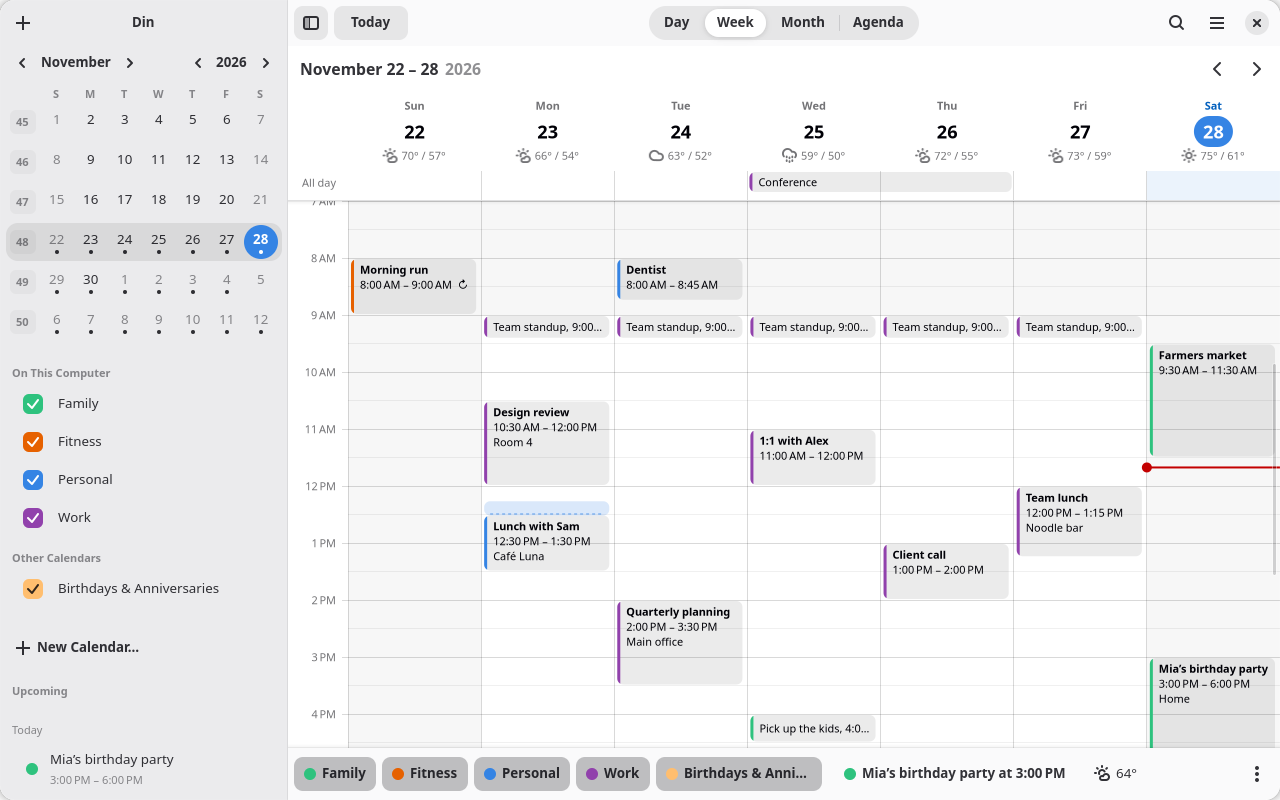
Din’s week view: each event a light chip with a bar in its calendar’s color, the forecast under each date, the month, your calendars and upcoming events in the sidebar, and a bar at the bottom with the calendars, the next event and the weather now.
Five views

See your time the way you think about it

From a single busy day to the whole year, one shortcut apart: Ctrl 1 to 5.

The day view for Monday: a standup, a design review, and lunch at Café Luna with fifteen minutes of travel time shaded before it. The sidebar shows the month, your calendars and the next events.
Day. Your day hour by hour, with the travel time blocked out before events and the forecast under the date.
The week view: seven days side by side, a two-day conference at the top, and the high and low temperatures under each date.
Week. Seven days side by side — or three or four on a smaller screen, and without the weekend if you like.
The month view: events in each day, the forecast in the corner of each date, and “+2 more” where a day is full.
Month. The whole month at a glance. Trips and conferences stretch across their days.
The year view: twelve small months, with colored dots under the days that have events.
Year. Twelve months, with a dot in each event’s color under the busy days. Double-click a day to open it.
The agenda view: the coming days as lists of events with their times, places and calendars, and the tasks due that day with a check box.
Agenda. What’s next, as a list: each day’s events with where and when, and the tasks due that day.
Quick add

Just type it

Press Ctrl N and write the event the way you’d say it. Din works out the day, the time, the place and whether it repeats, and shows you what it understood before you add it. Try it here — it works just like in the app.

  • Dates today, tomorrow, friday, next friday, sep 30, 9/30, in 3 days
  • Times 1pm, 13:00, noon, 1-2pm, from 9 to 11am, morning
  • Lengths for 2 hours, for 45 min, all day
  • Repeats every day, every monday and thursday, every other week
  • Places @ Room 4, or “at” and a name
Try:

All your calendars, in sync

The accounts you add in GNOME Settings simply show up, and changes sync both ways. The calendars on your computer show in GNOME Calendar and the top bar too.

  • Google, Microsoft 365, Exchange, Nextcloud, iCloud and any CalDAV server
  • Subscribe to calendar links and add your country’s holidays
  • Import and export standard .ics files, thousands of events in seconds
The month view: events in each day, the forecast in the corner of each date, and “+2 more” where a day is full.

Knows where you’re going

Type a place and pick it from the suggestions. Din shows the forecast for when you get there and, for cafés, shops and museums, whether they’ll be open.

  • Address suggestions as you type, from OpenStreetMap
  • The forecast at the place, at the time of the event
  • A warning on the event when a place is closed or closes before it ends
Editing an event at the Art Gallery of Ontario: under the location, the forecast for the evening, and a warning that the gallery closes at 9 PM, before the event ends, with its opening hours.

Move it, stretch it, copy it

Drag an event to another time or day, or drag its edge to change how long it lasts. Hold Ctrl to leave a copy behind: a faded copy follows the pointer and an outline shows where it will land.

  • Select several events to copy, cut or delete them together
  • Pinch, or scroll with Ctrl held, to zoom the hours
  • Undo your last fifty changes, even after restarting
Copying the design review to Tuesday with Ctrl held: the original stays on Monday, a faded copy follows the pointer and a dashed outline shows where it will land at 11:15 AM.

Print it your way

Print a day, a week or a month as a calendar, as a checklist to tick off, or both side by side — and see exactly how it will look before you print.

  • Put the calendar left, right, above or below the agenda
  • Portrait or landscape, with or without colors
  • Save it as a PDF, or as an image to share
The print dialog: a preview of a week planner next to a checklist of the week’s events, with choices for what to show, where the calendar goes, the period and the orientation.

A bottom bar that’s yours

The bar under the calendar works like a dock. Choose what it holds and in what order, and turn off what you don’t need.

  • A button per calendar to show or hide it
  • The next event, tasks due today, the weather now and world clocks
  • Shortcuts to New Event, Today, Search, Go to Date and Print
The Bottom Bar page in Preferences: a switch to show the bar, and the list of items it can hold, each with a handle to drag it into place and a switch to turn it on.

At home on any screen

From a large monitor down to a phone-sized window, the layout adapts: the sidebar slides away, the views move to the bottom, and everything stays easy to use by touch or with the keyboard. Light or dark, it follows your system’s style and accent color.

Din on a phone-sized screen: a day with its events and the forecast, and the views at the bottom.

And much more

The details that make a calendar pleasant to live in.

  • Repeating events

    Every weekday, the second Tuesday, the last Friday, said in a plain sentence. Change one, or all.

  • Reminders

    Several per event, with a snooze button, even while Din is closed.

  • Tasks

    Your to-do lists next to your events, from the same lists your other apps use.

  • Travel time

    Blocks out the trip before an event and tells you when it’s time to leave.

  • Weather

    The forecast under each day, with the high and the low, in °C or °F.

  • World clocks

    The time in other cities, and a second time zone next to the hours.

  • Time zones

    Give an event its own time zone and see it in yours, daylight saving included.

  • Search

    Start typing anywhere to find events by title, place or notes.

  • Activities search

    Find your events from the GNOME overview, without opening the app.

  • Copy and paste

    Copy a few events, click another day and paste: they keep their spacing.

  • Keyboard and screen readers

    Everything works from the keyboard, and the calendar describes itself to screen readers.

  • Runs in the background

    Close the window and reminders still arrive. Start at login if you like.

Fast with big calendars

Years of history, no waiting

Din is tested with a calendar of ten years: one-off events, 150 repeating ones with edited and skipped days, and 300 birthdays.

  • 8,500events in the test calendar
  • ~10 msto show another month of it
  • ~3 sto import all of it from a file
  • 50changes you can undo, even after restarting
Keyboard

Keep your hands on the keys

Every action has a shortcut, and the arrow keys move between days, hours and events.

  • New event CtrlN
  • Search CtrlF
  • Go to today CtrlT
  • Go to a date CtrlG
  • Switch views Ctrl1–5
  • Previous or next Alt←→
  • Undo CtrlZ
  • All shortcuts Ctrl?

All keyboard shortcuts

Your calendar stays yours

Your events live on your computer as plain calendar files that any app can open, with a backup of each one’s previous version — or with the accounts you chose, not on anyone else’s servers. There are no accounts to create, no ads and no tracking, and Din is free software, so anyone can check.

Address suggestions and opening hours come from OpenStreetMap and forecasts from Open-Meteo, only once you turn them on in Preferences.

Questions

Which calendars does it work with?

Any account with calendars in GNOME’s Settings → Online Accounts: Google, Microsoft 365, Exchange, Nextcloud, and iCloud or any other CalDAV server. It also has calendars that stay on your computer, and can subscribe to calendar links (webcal or .ics).

Can I use it alongside GNOME Calendar?

Yes. Din shows its calendars in GNOME Calendar and in the clock menu in the top bar, and a change in one shows up in the other. Show in GNOME Calendar in Preferences turns that off.

Does it work outside GNOME?

It works best on GNOME. Elsewhere, the calendars on your computer work as they are; online accounts need GNOME’s calendar service (evolution-data-server) and are added with GNOME Settings.

Is it on Flathub?

Not yet. For now, download the Flatpak file from the Download page — the GNOME runtime it needs still comes from Flathub, by itself.

Does it need the internet?

Only to sync your online calendars and subscriptions. Weather, address suggestions and opening hours go online only if you turn on Look Up Places and Weather Online in Preferences.

Why don’t I see opening hours for a place?

They come from OpenStreetMap, where not every place lists them yet. Pick the place from the suggestions while typing, so Din looks up the right one. You can add missing hours on openstreetmap.org, and everyone who uses the map gets them too.

Will reminders come when the window is closed?

Yes: GNOME sends Din’s reminders even while it’s closed (with Show in GNOME Calendar on, the default). Closing the window also keeps Din running in the background, and Start at Login in Preferences starts it hidden when you log in.

How do I back up my events?

In Preferences → Calendars, choose Export Events… and “All calendars”. That makes one standard .ics file with everything, which Import Events… brings back — and which other calendar apps can read too.

Which languages does it speak?

English and French so far; quick add understands English phrasing. Every text in the app can be translated, and new languages are welcome.

How can I help?

Tell others about it, report problems and ideas, translate it into your language, or improve the code. The source comes with a guide for contributors.

Ready to plan your week?

Din is free, installs in a minute, and works with the calendars you already have.